Quick answer: collect automatically, sync deliberately
To save tweets to Obsidian with KeepNest, install the Chrome extension, confirm your interests, and browse X normally. Matching complete posts enter your local library. Connect a folder inside your Obsidian vault under Sync destinations, then manually sync the items you want as Markdown notes with source links.
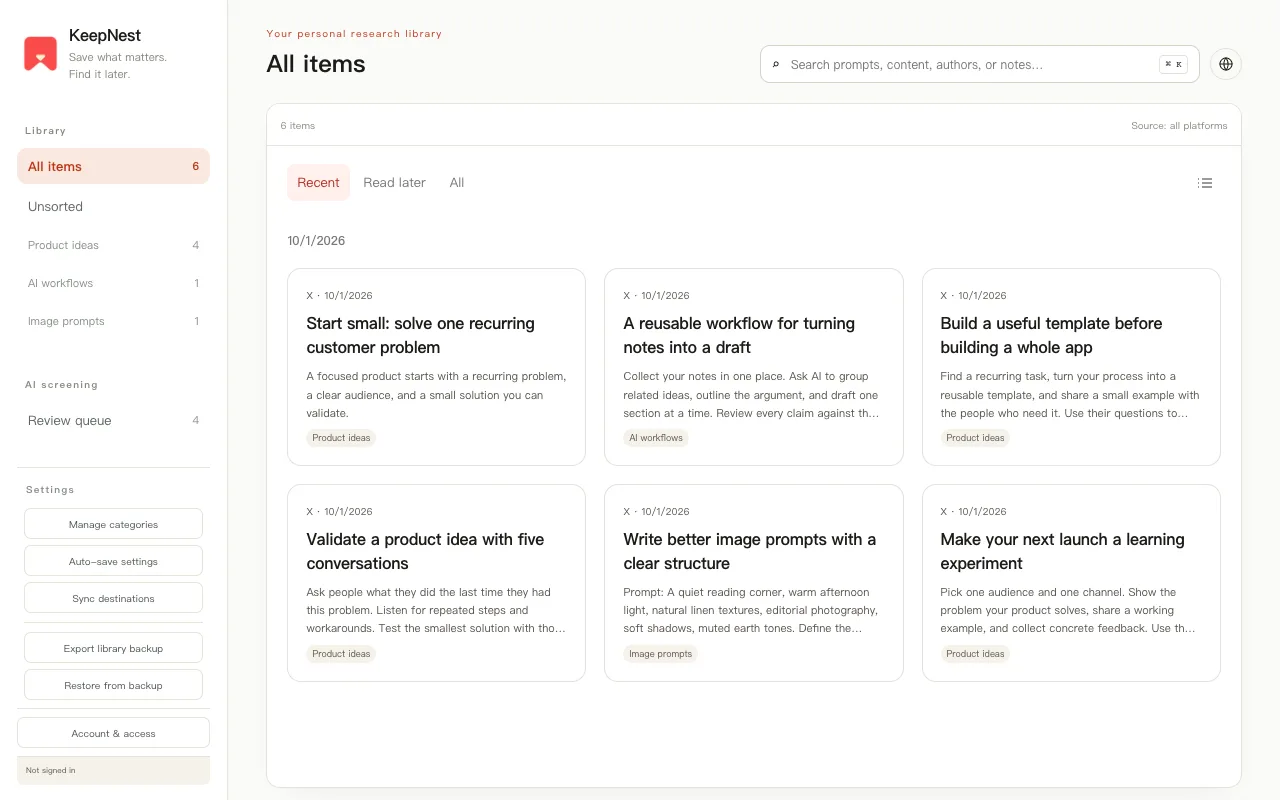
This distinction matters: automatic collection reduces the chance of forgetting a useful post while browsing, while manual sync lets you decide what deserves a permanent place among your own notes. KeepNest currently collects from X (Twitter), rather than every website. The guide below uses the actual local-folder and Markdown implementation, not a proposed integration. Interface screenshots use labeled demonstration content; they are not evidence of real AI accuracy or a real user’s saved posts.
Three ways to bring X posts into Obsidian
For occasional saves, copying a passage and its source URL into Obsidian is straightforward and gives you control over the wording. A single-post conversion or clipping tool can help with formatting, but you still choose and inspect each source. An interest-based saver adds a different layer: it decides which visible, complete posts are worth collecting according to a rule you confirmed, then keeps them available for later review.
Choose by the work you want to avoid. If your main problem is formatting one known post, manual clipping may be enough. If you keep encountering useful examples and forget to bookmark them, interest-based saving is more relevant. None of these methods guarantees access to deleted sources, full threads, protected content or permanently hosted images. Check a tool’s current permissions and export format before handing it a large collection.
| Method | Choosing posts | Writing notes | Best fit |
|---|---|---|---|
| Manual copy | You choose each post | You paste and format | A few carefully selected references |
| Single-post converter | You choose each post | Depends on the tool | Formatting a known source |
| KeepNest | Confirmed interest rule; manual saves also available | Manual sync to a chosen folder | Collect relevant examples while browsing |
Step 1 — Install and open your saving profile
Install from the official Chrome Web Store link and pin KeepNest if you want quick access. Open the side panel to build a saving profile. You can use complete examples already loaded on X Bookmarks or X History, or describe your interests manually. This uses X’s pages, not Chrome browsing history, and it does not fetch every bookmark in your account.
Choose examples that represent the kind of material you will actually revisit: a reusable prompt, a practical method, a concrete case or a visual reference. Reviewing samples is a way to draft broad interests, not a reason to create a separate category for every post. You do not need to sign in just to try the Free local library.
Step 2 — Confirm a useful interest rule
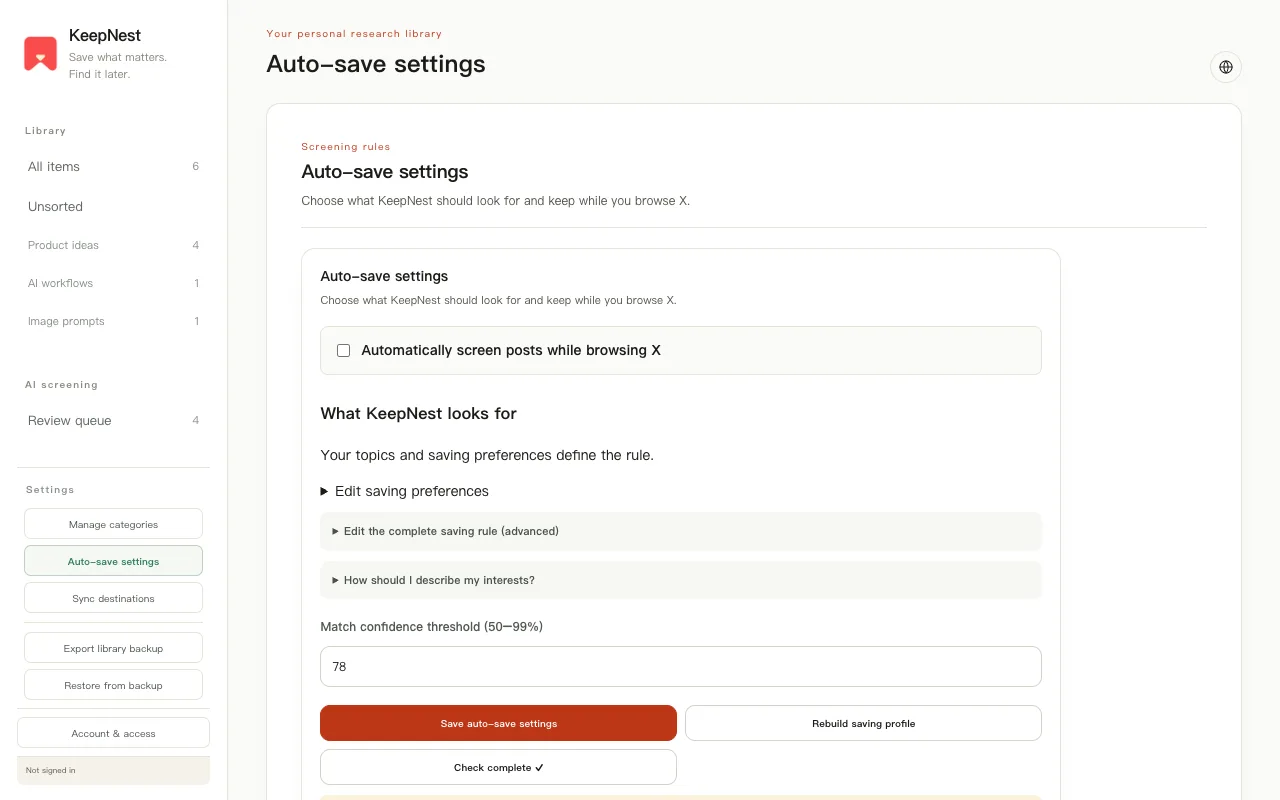
Describe what to keep, what makes it useful, and what to ignore. For example: keep practical AI coding workflows with tools, constraints and examples; prefer methods you can repeat; skip unsupported hype and promotions without substance. KeepNest proposes a profile you can edit. Confirm the rules before automatic collection starts.
Learning examples and new-content decisions are different things. Importing examples you already chose shows that setup can produce an initial library; it does not prove that the rule will identify every useful new post. After setup, inspect a few normal browsing saves and adjust broad preferences when the same mistake repeats. You should not need to approve every post to keep the system working.
Step 3 — Browse normally; review only when useful
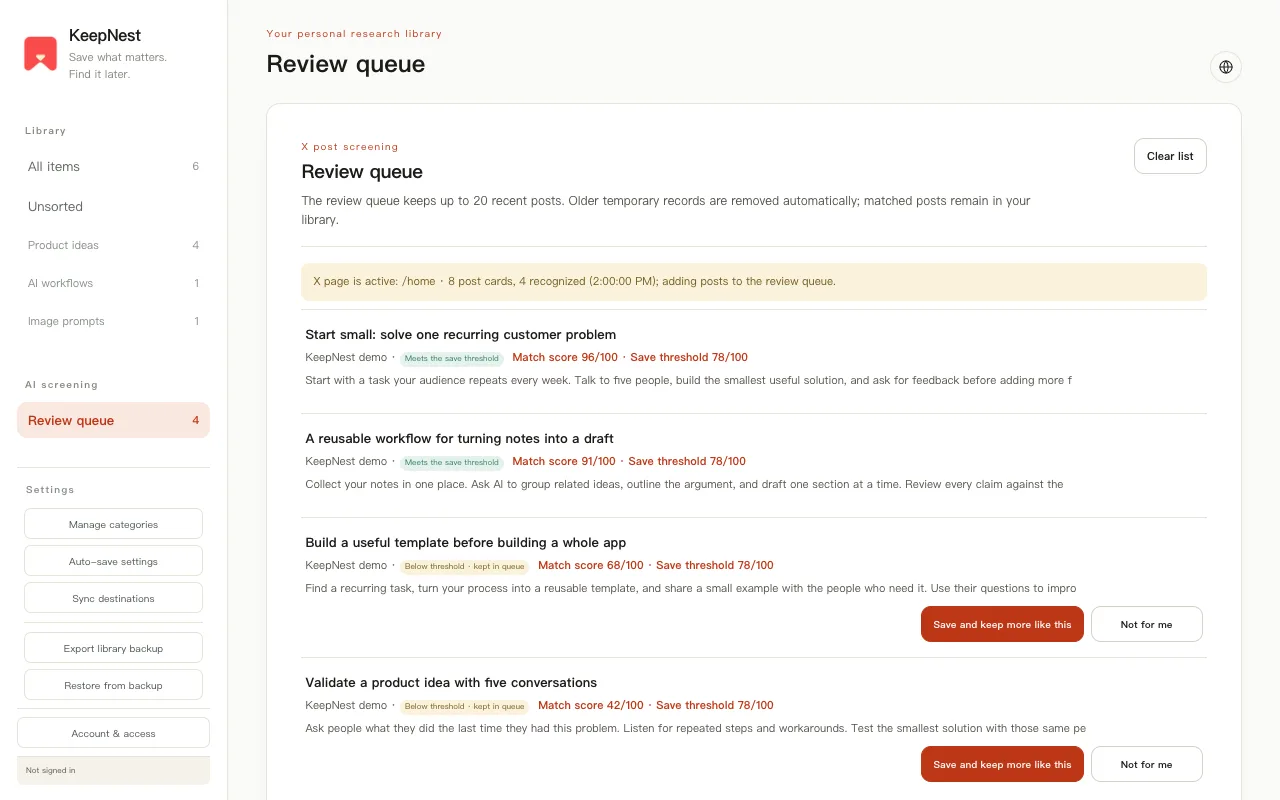
KeepNest screens complete visible posts on supported X pages while automatic collection is enabled. Saved items retain original text and source information alongside the organized result. If a post is collapsed or its content is incomplete, inspect the source instead of assuming the system read what you cannot see. Replies provide loaded context; they are not a promise of an entire thread archive.
The review queue is temporary space for inspecting captured posts and correcting misses. Free keeps up to 20 recent records and Pro up to 100. Queue capacity does not limit your saved local library. You can manually save a missed post or discard a temporary record; rejecting one post is not an instruction to silently rewrite all your interests. Opening the library is enough to inspect your actual saves.
Step 4 — Choose a vault folder and sync
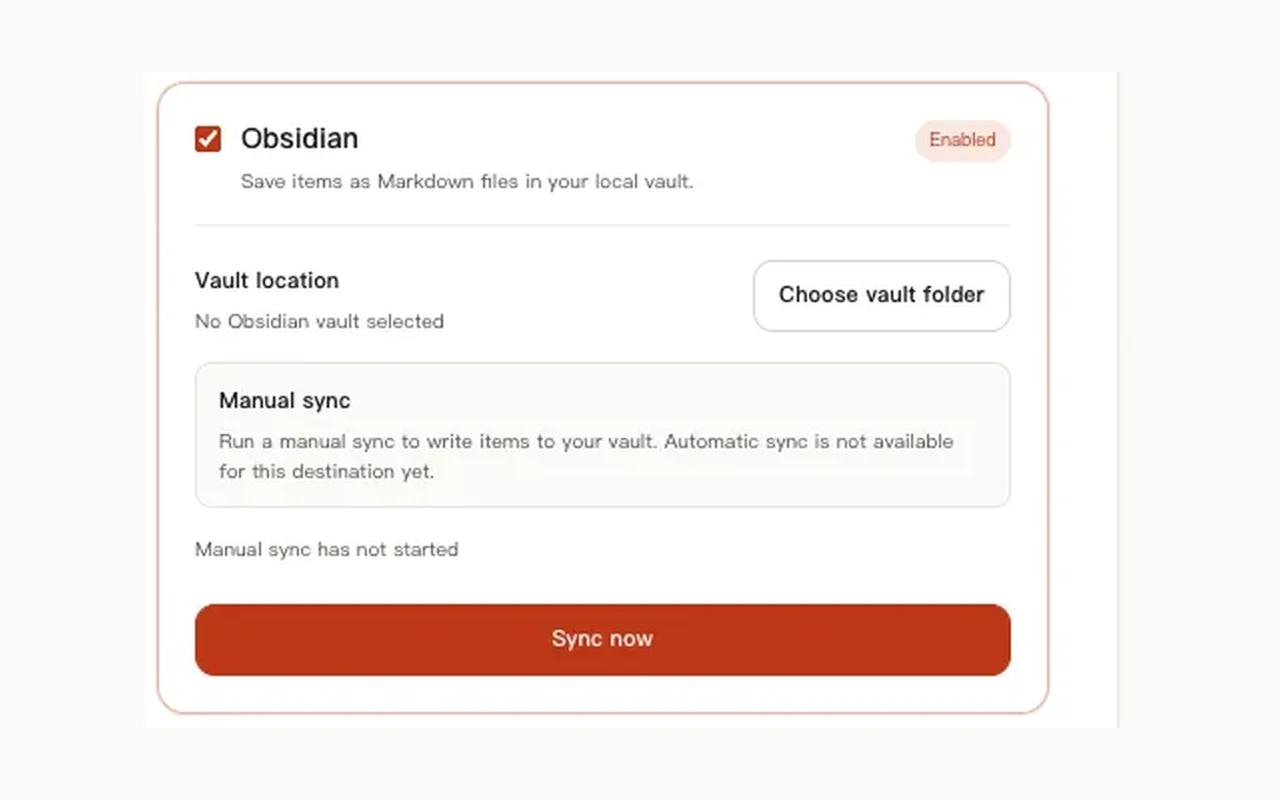
In the library, open Sync destinations and choose Obsidian. Authorize a local folder inside the vault you use in Obsidian. Start with a dedicated folder such as KeepNest references so imported files stay easy to distinguish from your own notes. The browser requests read/write access to that folder; cancelling permission should leave your local library untouched.
Use the sync action for the selected saved item. KeepNest writes a Markdown file, and re-syncing that item updates its corresponding file. This is not a two-way merge of every change you make in Obsidian. Keep personal analysis in your own linked note or preserve a separate copy before re-syncing edited exports. If permission expires, reconnect the folder and retry. The workflow does not upload or index the rest of your vault.
Step 5 — Inspect the actual Markdown output
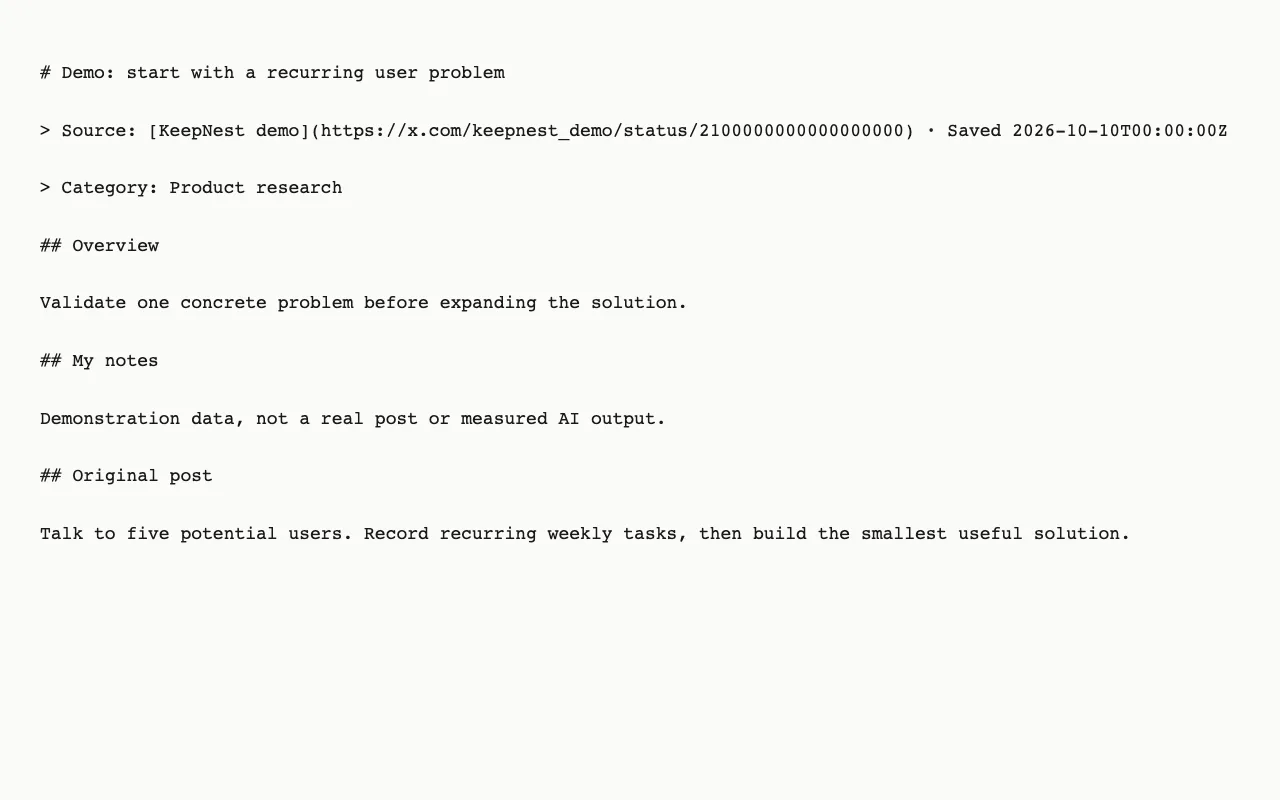
The example below is produced by the current KeepNest Markdown formatter using labeled demonstration data. It includes a heading, a source blockquote, optional category and organized sections, your notes, and the original text. It is not a promise of YAML frontmatter: the current formatter uses Markdown headings and source lines. Images appear as remote Markdown links when available.
Open the file in Obsidian and compare it with the item in KeepNest. Confirm that the original link returns to the right post and that anything you plan to reuse is present in the original. If you chose prompt extraction, verify the exact prompt rather than assuming a summary preserved all its wording. A useful note is one you can trust and reuse, not just one that looks well formatted.
# Demo: start with a recurring user problem

> Source: [KeepNest demo](https://x.com/keepnest_demo/status/2100000000000000000) · Saved 2026-10-10T00:00:00Z

> Category: Product research

## Overview

Validate one concrete problem before expanding the solution.

## My notes

Demonstration data, not a real post or measured AI output.

## Original post

Talk to five potential users. Record recurring weekly tasks, then build the smallest useful solution.
Organize notes around the work you will do
Use categories as broad research directions and keep the intended use visible. A prompt needs exact wording, a method needs steps and constraints, a case needs evidence and outcomes, and a visual reference needs the original image link. These uses can live inside a small number of topics; creating a folder for every author usually adds maintenance without making retrieval easier.
In Obsidian, link a useful imported reference from a project note and add what you intend to try. Folder structure and personal tags are choices you make in your vault, not features KeepNest automatically adds to every export. Start by searching a term you remember from the original and checking its source. If that fails repeatedly, improve the saving rule or category instruction instead of collecting a larger pile.
Privacy, backups and limits to keep in mind
Your browser’s extension storage holds the main library. Signing out, losing Pro or a temporary AI failure should not remove already saved content. AI screening and organization send relevant post content and instructions to KeepNest and its providers; local storage does not mean all processing is offline. Read the privacy policy before enabling that processing.
Export a JSON library backup before uninstalling the extension or clearing browser storage. Markdown notes are useful working copies but do not replace a full restore backup with the library’s metadata. Linked images can become unavailable, and unavailable posts cannot be recovered merely by installing KeepNest later. Preserve any independently downloaded media only where you have the right to do so. The product’s goal is a useful personal reference library, not an unattended copy of all X content.
